Steps
Create a folder named Borland in Local Disc (C:),
Download Turbo C++,
Extract it in the Borland folder made inside Local Disc (C:),
Download and install DOSBox,
Open DOSBox application,
Run the following commands and enjoy!
mount c c:\borland
c:
cd turboc3\bin
tc.exe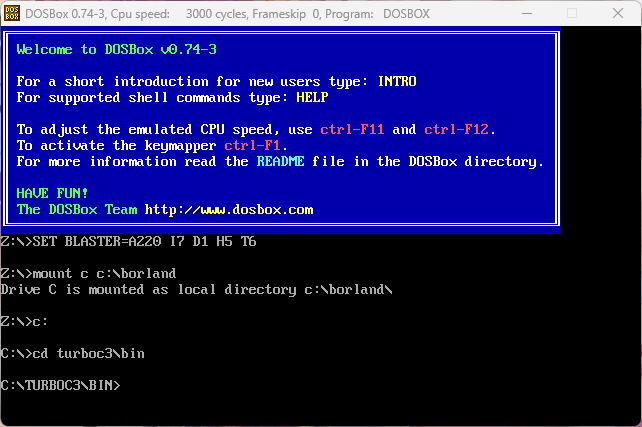
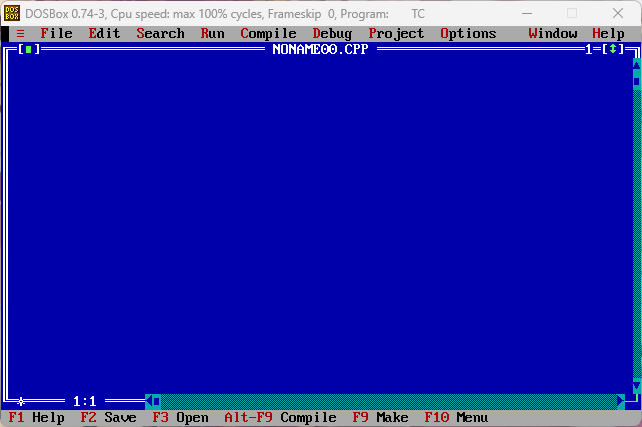
If you don’t want to enter commands every time
Download the config file,
Keep it in the Borland folder made inside Local Disc (C:),
Open properties of the shortcut of DOSBox program,
Replace -userconf with the following
-noconsole -conf “C:\Borland\TURBOC3.conf”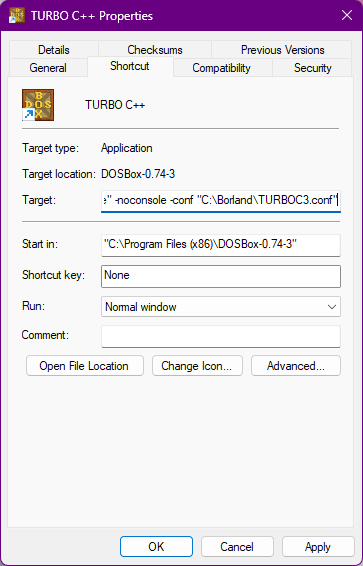
Rename the shortcut to Turbo C++ from General tab and click Ok.
Next:
Add VSCodium in Windows Context Menu
Add VSCodium in Windows Context Menu